FFTrans Neu
FFTrans Neu is a macOS app that accurately transcribes audio and video files offline and automatically identifies speakers. All processing is completed on the device.
Completely Offline
No audio data, transcribed text, etc., are sent outside the device.
Speaker Isolation and Recognition
Speaker isolation determines who spoke, and remembered speakers are automatically identified thereafter.
Custom Dictionary That Doesn't Require Re-transcription
Registering proper nouns and other words will immediately reflect them in the transcription results. Natural language processing also handles variations in spelling.
Supports long audio sessions
By splitting the audio while overlapping it, it can stably transcribe long audio sessions exceeding 2 hours. Speakers are also automatically integrated.
Operates with low memory and space requirements
It operates stably on Apple Silicon Macs with 8GB or more of memory. The initial download model is also space-saving, totaling approximately 640MB.
Japanese language optimization
Generates natural-sounding Japanese text with AI-powered punctuation completion. (This feature is off by default because it slightly increases memory consumption and reduces transcription speed by about 20%.)
Operating Environment
- Compatible Mac: Apple Silicon (M1/M2, etc.) models only (※Does not work on Intel Macs)
- macOS Version: 26.0 (Tahoe) or later recommended
- Memory: 8GB or more (※Avoid using it simultaneously with heavy applications as much as possible)
- Disk Space: 1GB or more (※Please ensure sufficient free space for saving and analyzing audio files)
Download
Download it first and try out all the features.
Download FFTrans Neu (17.7MB)macOS Version: 16 (Tahoe) or later recommended
You can try out all features except file saving in full.
(License registration is required to save files.)
Purchase
Quick Start
You can start transcription in 3 steps.
-
1
Specify a File
Drag and drop your file into the file area at the top of the window, or click the "Select File" button. Major audio and video formats such as MP3, M4A, WAV, FLAC, MP4, and MOV are supported.
(WebM is not supported.)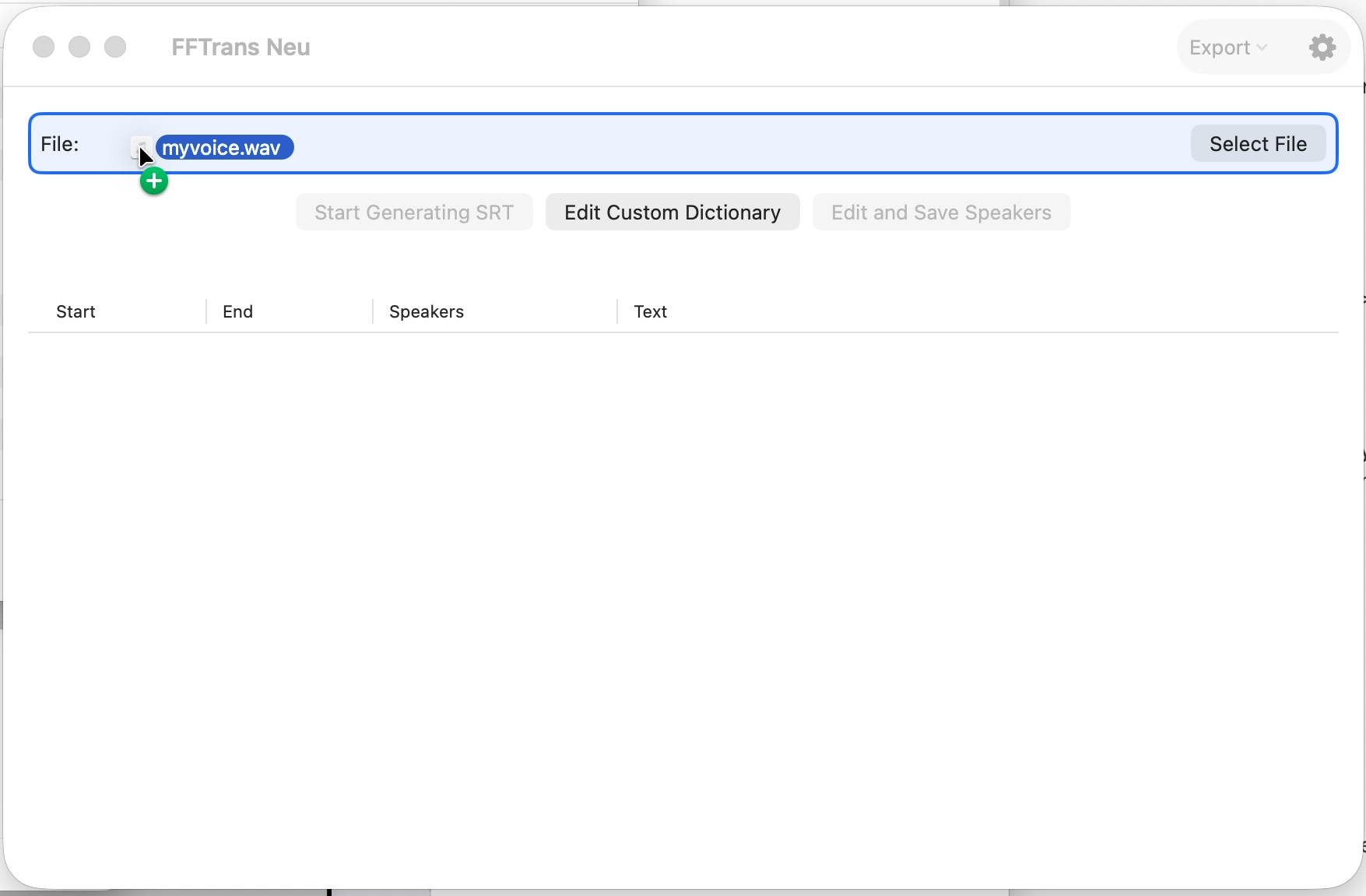
-
2
Check settings
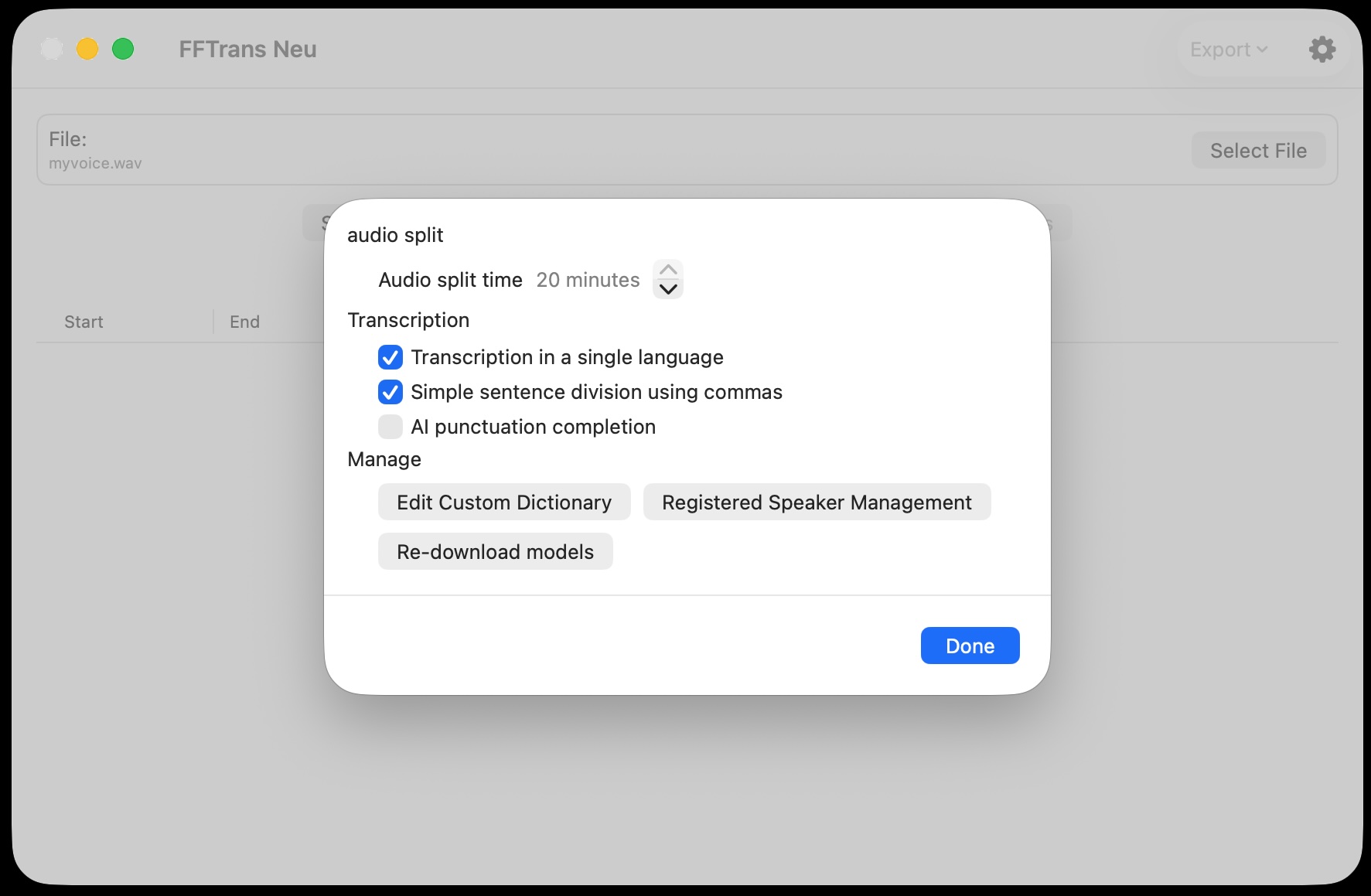
You can manage settings such as audio splitting/transcription options, custom dictionary editing, registered speaker management, and model re-downloading from the gear icon in the upper right corner of the screen. The default settings are fine for the first time.
-
3
Start transcription
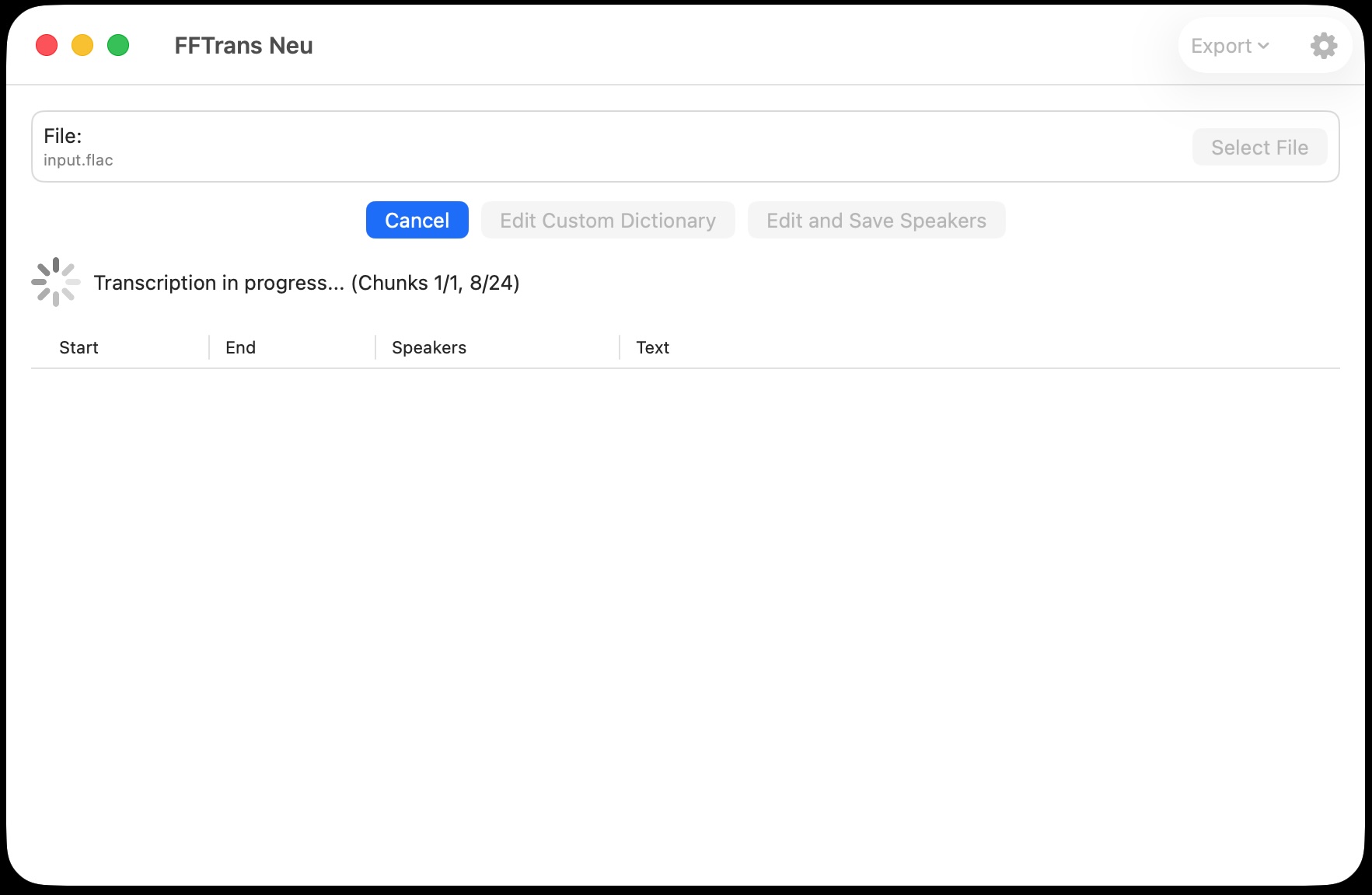
Click the "Start Generating SRT" button. You can check the progress in the status display below the button.
Launching the Application
Double-click the application icon to launch FFTrans Neu.
The first time you run the application, you will need to download the speaker separation and transcription models.
Please check your network connection.
This may take several minutes to 10 minutes. Do not close the application during the download.
After downloading, it will work offline.
Also, the first transcription immediately after downloading the model may be slightly slow due to the influence of the OS cache, etc.
If the license is not registered, the license registration screen will be displayed when you launch the application.
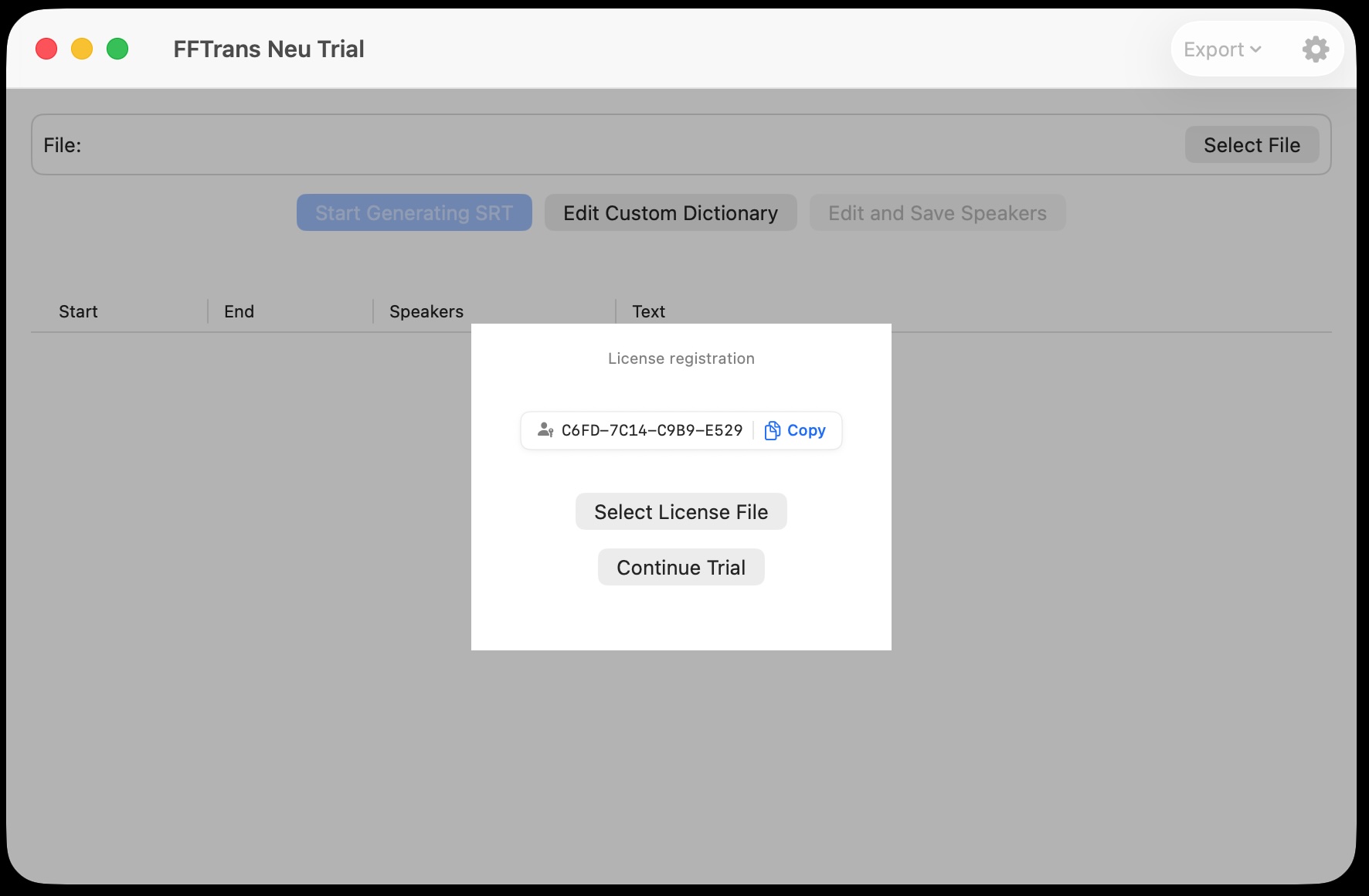
If you have purchased the software and have the license file, press the "Select License File" button and select the license file to complete license registration.
If you wish to continue the trial, press the "Continue Trial" button and select "Yes" when asked "Do you want to continue the trial?". If you have purchased the software and have the license file, press the "Select License File" button and select the license file to launch in Trial mode.
In Trial mode, you can fully try all functions except export.
However, commercial use in Trial mode is prohibited.
Importing Files
Supported Formats (Files that can be read and written by AVFoundation)
| Type | Format |
|---|---|
| Audio | MP3, M4A, WAV, AIFF, FLAC |
| Video | MP4, MOV, M4V |
How to Add Files
- Drag and Drop to File Area
- File Dialog from "Select File" Button
- Drag and drop from Finder (dropping to app icons on the Dock is not possible)
Run transcription
After adding the file, click the "Start Generating SRT" button to begin processing.
Long audio files will be split into chunks (default: every 20 minutes) for processing.
Automatic language detection
Checking "Transcription in a single language" in the settings screen will automatically detect the language by analyzing the beginning of the audio. It supports many languages, including Japanese, English, and Chinese.
If you want to transcribe audio with multiple languages, uncheck "Transcription in a single language" in the settings screen. It will automatically detect the language each time and transcribe accordingly. This also supports many languages, including Japanese, English, and Chinese.
Speaker Identification
Speaker separation and identification adds who spoke and when to the text.
Using Registered Speaker Information
By saving frequently appearing speakers as "Registered Speakers," their names will be automatically assigned in subsequent transcriptions. Registered speakers can be managed on a dedicated screen accessed via the "Registered Speaker Management" button in the settings screen.
Exporting Results
After transcription is complete, you can export in various formats from "Export" in the upper right corner of the screen. (Saving is not possible in the trial version.)
- Save SRT — Compatible with importing into video editing software
- Save Text — Simple text file
- Save CSV — Comma-separated format including utterance times
Settings Screen
The gear icon button in the upper right corner of the screen displays various settings screens.
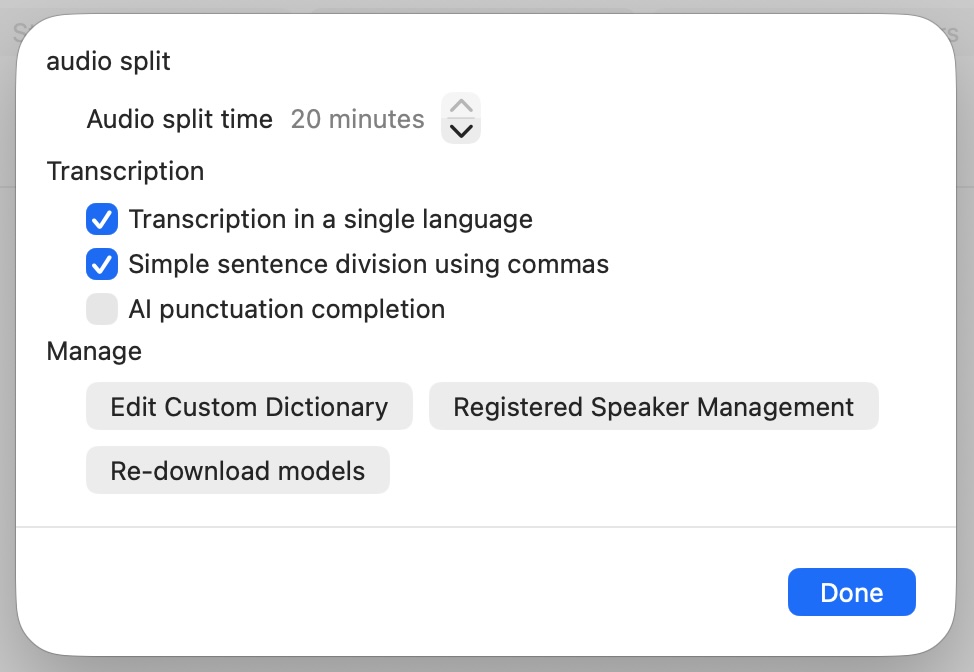
A confirmation dialog will appear asking, "Do you want to delete and re-download the model?" Selecting "Yes" will start the re-download.
Do not close the application during the download.
Edit Custom Dictionary
The "Edit Custom Dictionary" button allows you to register and manage proper nouns that will be reflected in the transcription results.
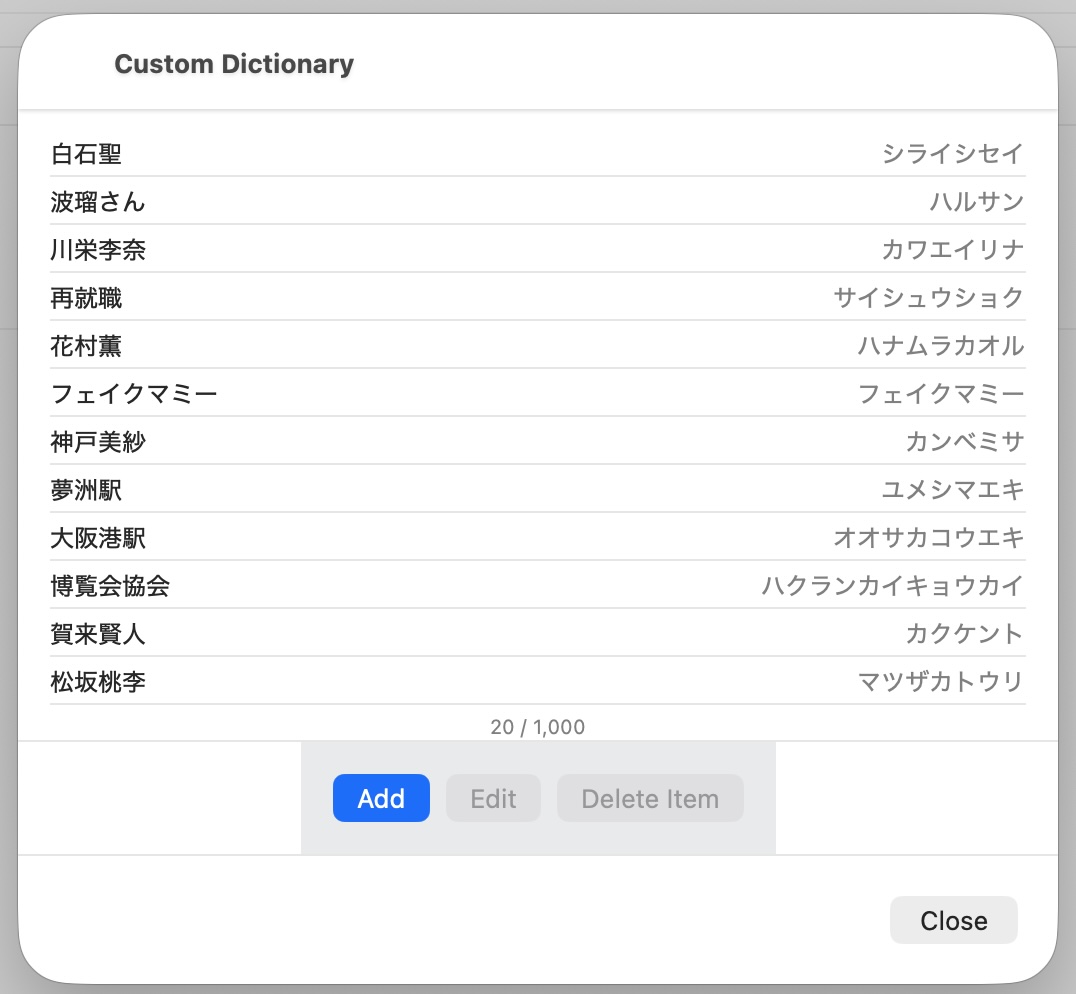
The results of custom dictionary editing are immediately reflected in the transcribed text.
The maximum number of words that can be registered in the custom dictionary is 1000.
Custom dictionaries are only applicable to Japanese.
Enter the "Word" and "Reading" you want to add. Press the "Save" button to add the entry. Press the "Cancel" button to cancel the entry addition.
The word must be at least 3 characters long and can contain full-width and half-width characters, including kanji. The reading must be at least 4 characters long and can only contain full-width katakana and half-width characters.
Enter the "Word" and "Reading" you want to edit. Press the "Save" button to update the entry. Press the "Cancel" button to cancel the entry editing.
Words must be at least 3 characters long and can include full-width and half-width characters, including kanji. The reading must be at least 4 characters long and can only be full-width katakana and half-width characters.
A confirmation dialog will appear asking, "Do you want to delete 'word'?". Pressing the "Delete" button will delete the item. Pressing the "Cancel" button will cancel the item deletion.
Edit and Save Speakers
The "Edit and Save Speakers" button allows you to set speaker names for all speakers separated during transcription, or save them as registered speakers.
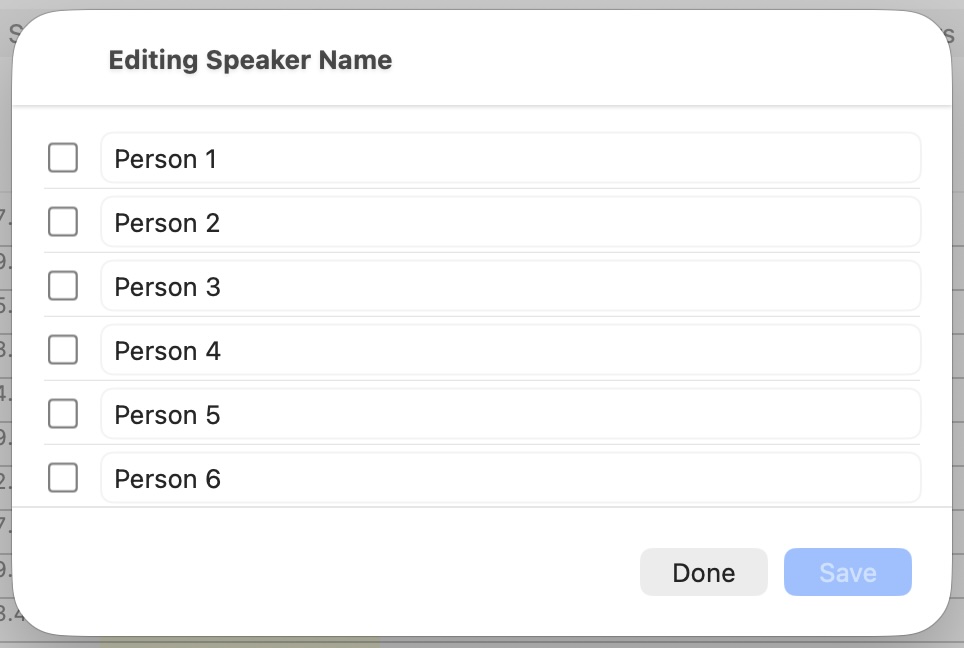
The maximum number of registered speakers is 100.
Even if the same speaker is already registered, the system will automatically recognize and update it, so you don't need to worry about overwriting.
You can change or delete registered speakers' names in the "Registered Speaker Management" section of the settings screen.
Registered Speaker Management
The "Registered Speaker Management" button allows you to change or delete the names of registered speakers.
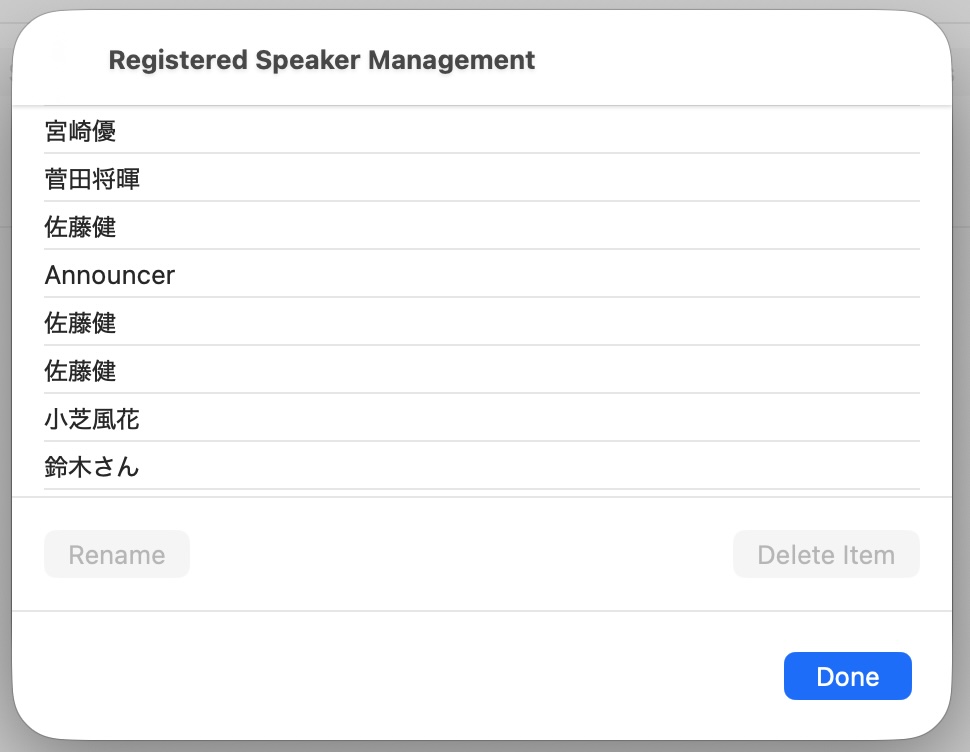
Model Redownload
The "Model Redownload" button allows you to redownload the model used for speaker separation and transcription.
A confirmation dialog will appear asking, "It will be deleted the model and redownload it. Are you sure?" Selecting "Yes" will start the redownload.
A confirmation dialog will appear asking, "It will be deleted the model and redownload it. Are you sure?" If you select "No," the redownload will be canceled..
License resistration
A license file is required to continue using FFTrans Neu.
-
1
Copy your User ID from the menu bar → FFTrans Neu → User ID (⌘⇧U).
The User ID is also displayed on the license registration screen that appears when you start the application, and you can copy it using the copy button. -
2
Go to the FFTrans Neu purchase screen from the product page, enter the copied User ID and email address in the input fields, and complete the payment.
After payment is completed, we will send you the license file (license.dat) by email within 1-3 business days. -
3
On the license registration screen that appears when you start the application, press the "Select License File" button and select the license file you received. Authentication is complete when "License registration complete" is displayed.
OSS License List
FFTrans Neu uses the following OSS licenses.
FluidAudio : Apache License 2.0 (License file)
WhisperKit : MIT License (License file)
The following models will be automatically downloaded in connection with the use of the above OSS.
distil-whisper_distil-large-v3_594MB : Model obtained via Hugging Face, see upstream license
FluidAudio speaker-diarization model : CC BY 4.0, obtained via Hugging Face.
Troubleshooting
Model download does not complete
Please check your network connection. If you are using a VPN, try temporarily turning it off. If the problem persists, restart the app and redownload the model using the "Re-download Models" button in the settings screen.
The accuracy of the transcription is low
If using microphone recording, reducing ambient noise may improve the result.
Speakers are not correctly identified
Sections where multiple people are speaking overlapping are difficult to identify. Referring to the speaker color coding, you can efficiently correct the transcription by focusing on the less reliable red and yellow labels.
The app has become unresponsive
Processing large files increases CPU/GPU load. Please wait until processing is complete. It is okay to restart after a forced shutdown.
Unable to save transcription results
The trial version has limited functionality for saving transcription results. Please check your license registration.
"Invalid license file" message appears
FFTrans Neu issues a license file tied to the machine. Please check if you are running it on the machine from which you obtained your user ID. Reissuance of license files due to machine replacement, etc., is generally only possible once, so please contact us by email.